How statory works
A 3-minute look at how statory works — see it before you run it.
Quantitative analysis — your data
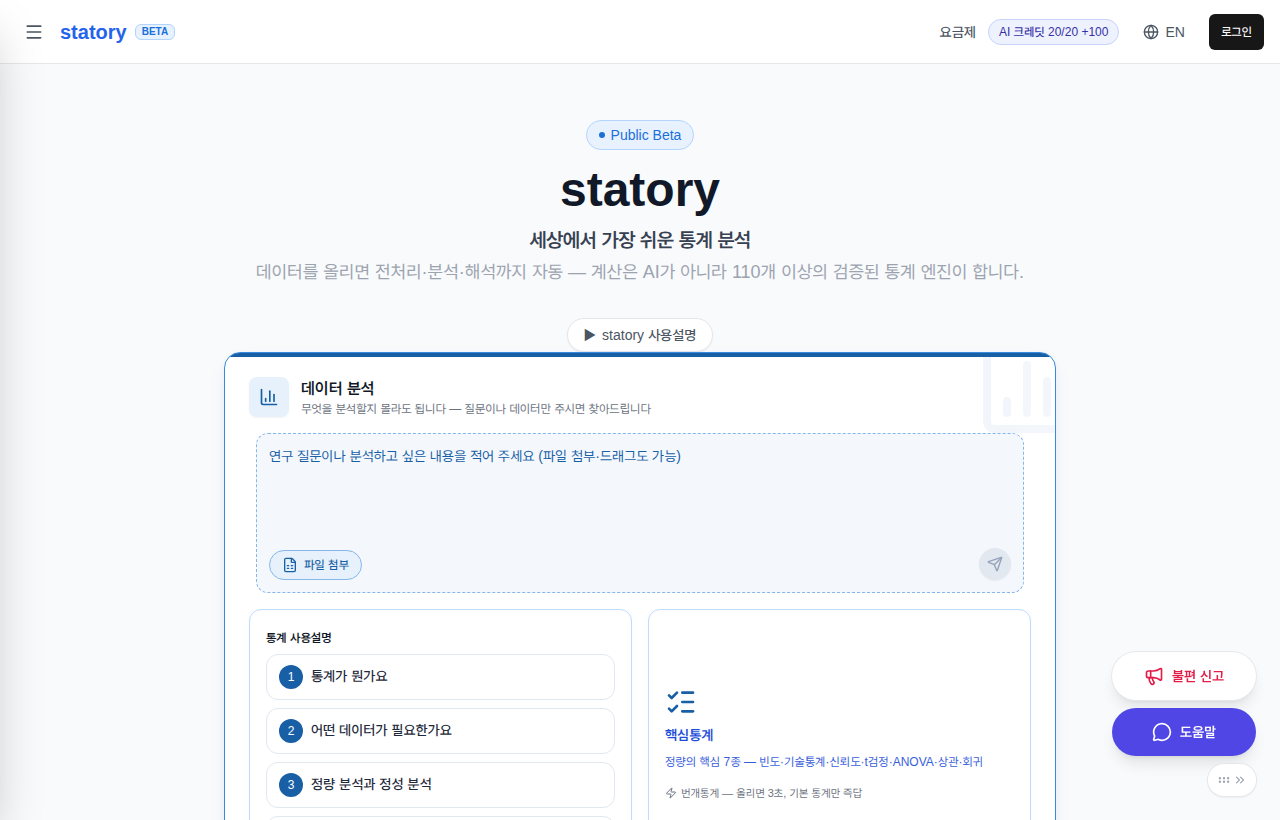
① In "Start an analysis" on the home page, pick a purpose and attach your file — three cards: Quantitative, Qualitative, Decision & Game Theory.
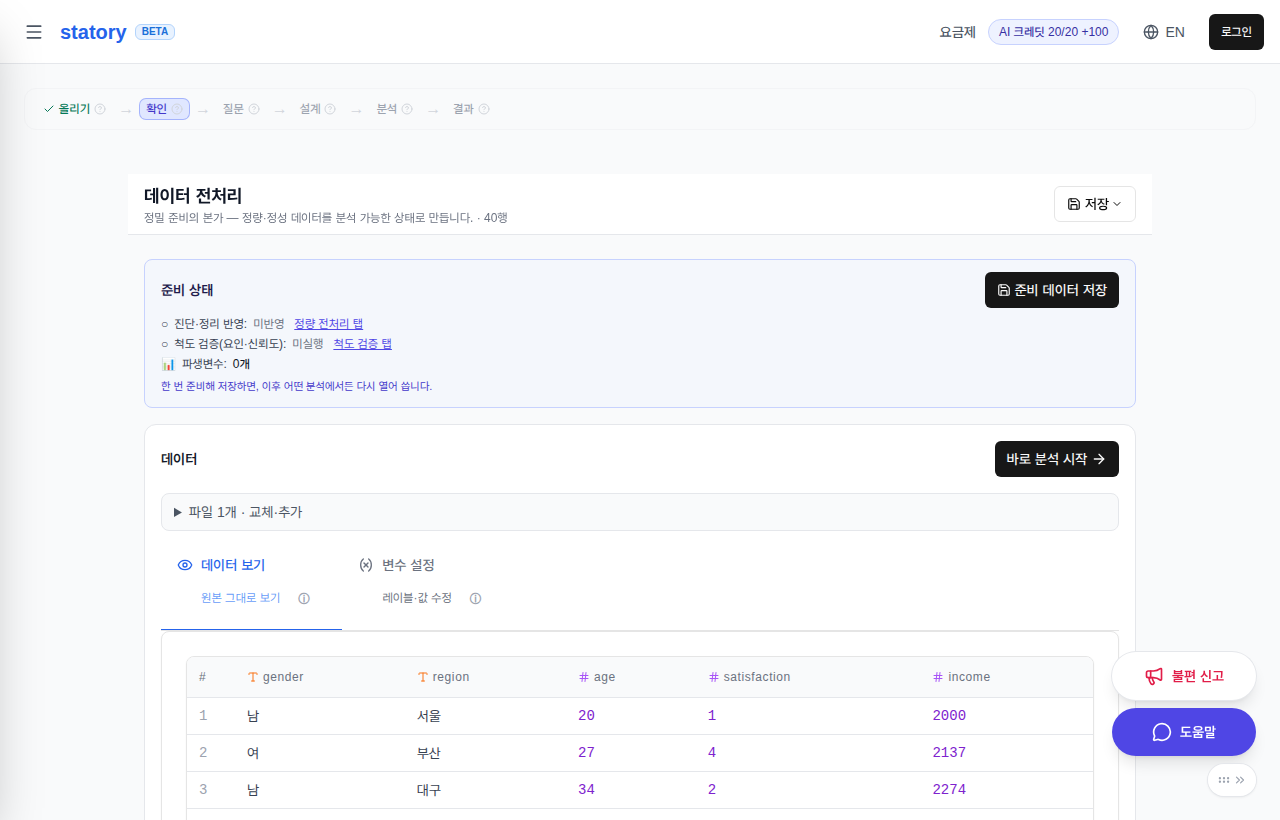
② Tidy the data — prepare once and every later analysis reuses that state (see the "Preparation" chapter below).
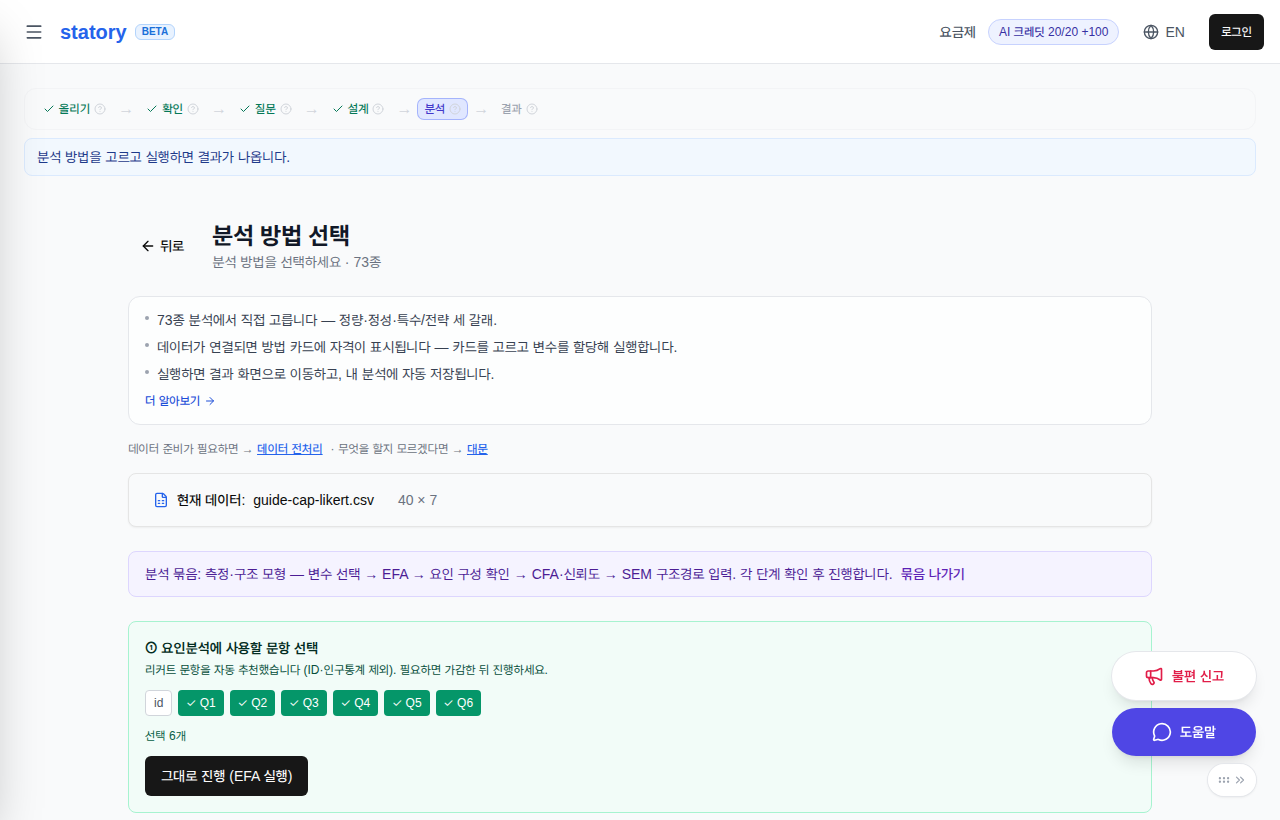
③ If your data is a multi-item scale, check its factors — only when needed (see the "Factor analysis" chapter below).

④ Pick an analysis — get a recommendation if unsure.
⑤ Tables, interpretation, and charts appear together.
Preparation — prepare once, analyze many times
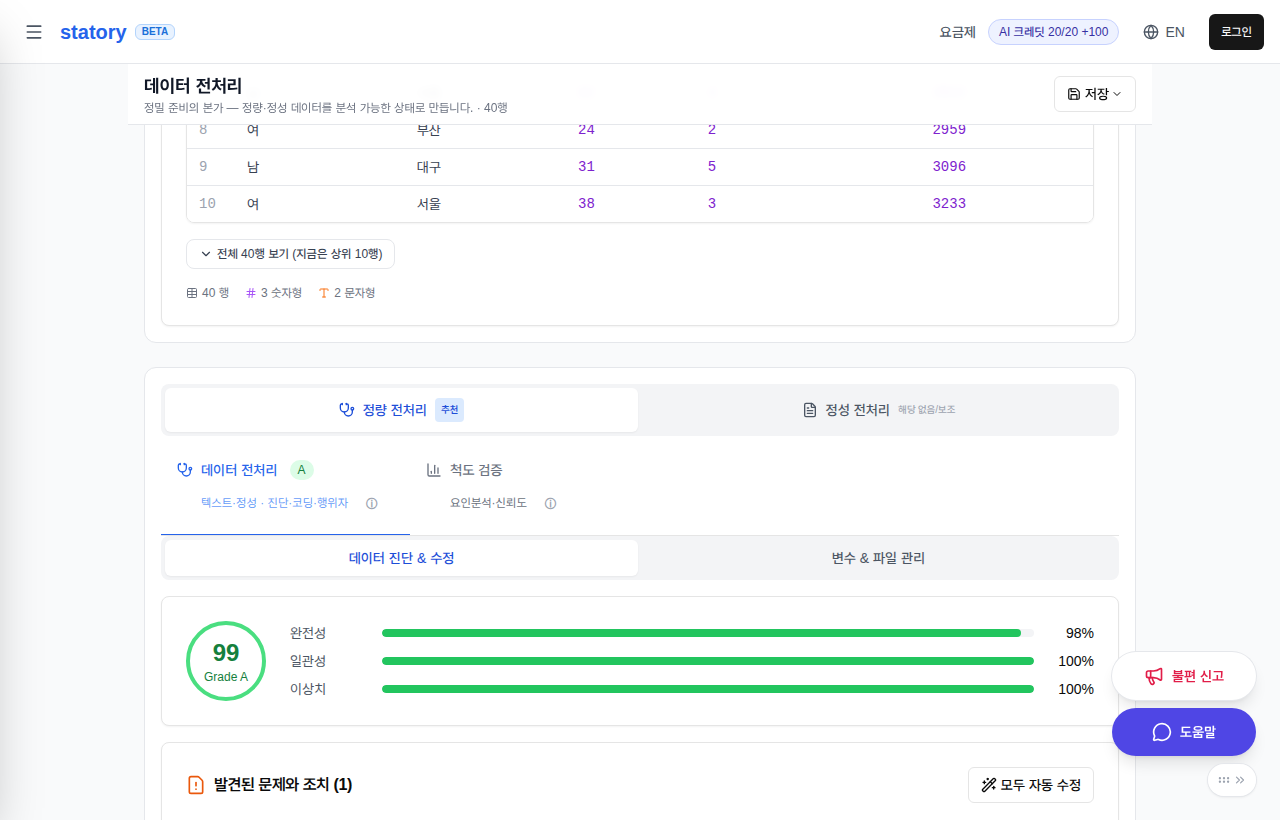
① Your data is diagnosed automatically — missing values, outliers, reverse-coded items are flagged with suggested fixes. You decide what to apply.
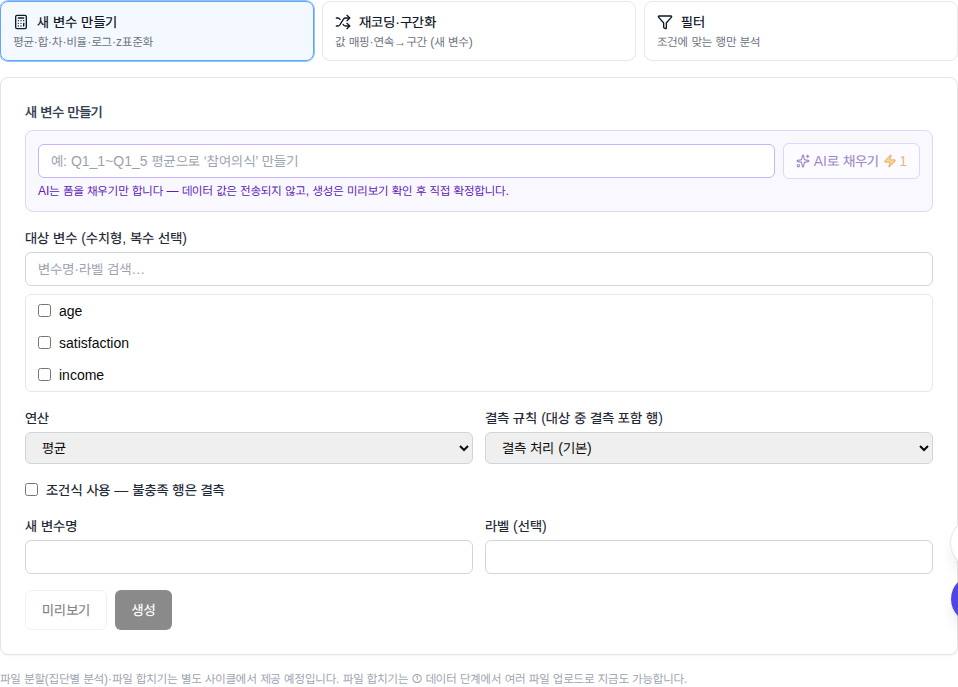
② Build new variables — means, sums and the like — in "2. Create variables ▸ Variable calculation" (pictured). "Recode" for re-mapping values and "Select cases" for narrowing the rows are buttons alongside it on the same screen.

③ When you are done, open the "Save" menu at the top of the screen — "Save current data" stores the whole prepared state: diagnosis, scale validation, and every derived variable. "Open saved data" in the same menu brings a previous preparation back.

④ Once prepared and saved, you never re-upload — pick it up under "Saved prepared data" in "My analyses", or via "Open saved data" on the analysis screen while no data is attached yet.
Factor analysis — the structure behind items

① With many items, find the few themes (factors) behind them. In the bundle run, "① Select items for factor analysis" pre-picks the Likert items — adjust, then press "Proceed (run EFA)". To choose the rotation (Varimax, Promax, …) and the extraction method yourself, use "Scale validation ▸ Factor Analysis Options" in Preparation (/prep) — auto-suggestions are only a shortcut; the choice is always yours.
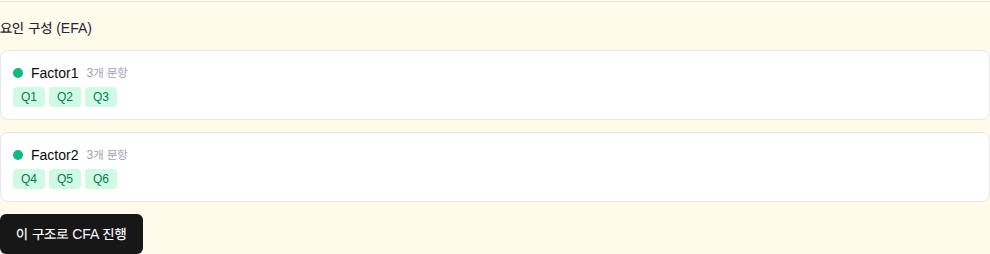
② When confirming the structure, pick how factors are composed — item means, or factor scores (regression, Bartlett, …). The choice is yours.

③ Move on to reliability and the items of the factor you just confirmed are offered as a suggestion — click to fill, adjust if needed, run. No re-picking items one by one.
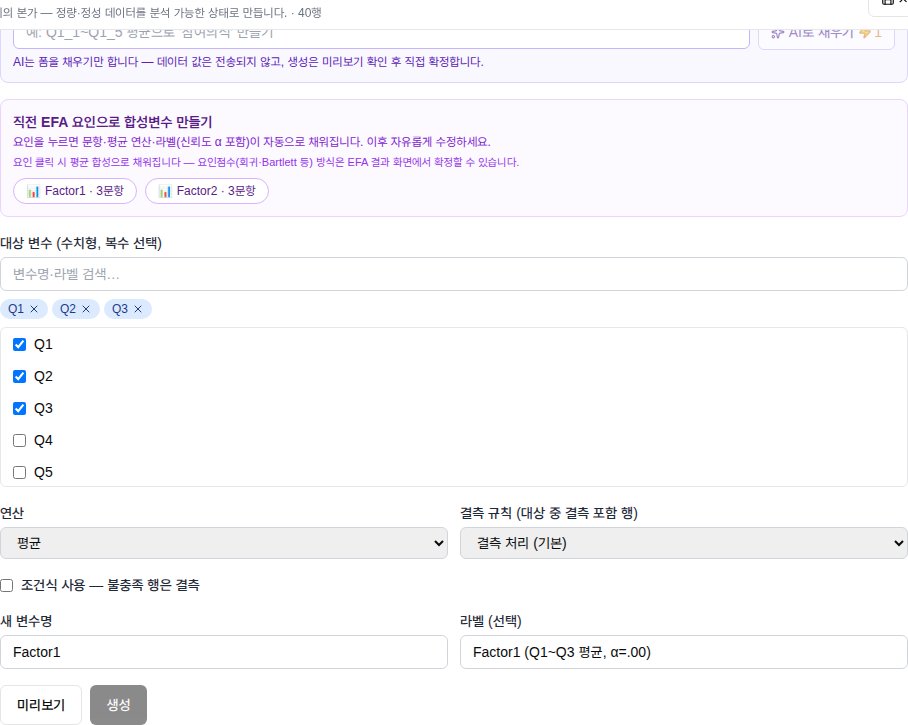
④ The same factor is offered when creating a composite variable, and the label keeps its source and reliability — e.g. "Engagement (mean of Q1_1–Q1_5, α=.912)".
⑤ The composite appears right away in the variable list of later analyses (regression, group comparisons…). To verify the structure and go all the way to causal paths, you can run the measurement–structure bundle (EFA → CFA → SEM) in one go.
Curious about statistics concepts? See Learn statistics.